Installing VoipMonitor on Trixbox and Elastix

Using Internet SIP trunking services with a VOIP phone system is incredibly cost effective. The only problem is the unreliability of the Internet. We’ve been expreimenting with several tools for monitoring phone call quality but VoipMonitor has been the most useful. Some of the most useful features are:

  • Creates packet capture of each phone call. This is really useful because you get more manageable capture files, not one monster files containing all calls.
  • It logs all calls to a MySQL database and calculates several important metrics like MOS. If you need an example of a bad quality call to send to your provider you can just sort the call table by MOS. Anything under 4.0 probably has some jitter or lag in the audio.
Here are the steps to install VoipMonitor (these are just slightly modified from http://www.voipmonitor.org/):
Install all dependencies through yum.
yum install subversion libmysql++-dev libvorbis-devel mysql-devel libpcap-devel php5-mysql php5-gd
Install libpcap. You need a version > 1.0 so the version in the yum repo is not current enough.
wget http://www.tcpdump.org/release/libpcap-1.1.1.tar.gz
tar xzf libpcap-1.1.1.tar.gz
cd libpcap*
./configure
make
make install
Install the mysql client that VoipMonitor uses to connect to MySQL
wget http://tangentsoft.net/mysql++/releases/mysql++-3.0.9.tar.gz
tar xzf mysql++-3.0.9.tar.gz
cd mysql++-3.0.9
./configure
make install
ldconfig
cp /usr/local/lib/libmysqlpp.so.3 /usr/lib/
Install VoipMonitor
wget http://dl.nvthost.com/downloads/voipmonitor-3.0.1.tar.gz
tar zxf voipmonitor-2.0.tar.gz
cd ../voipmonitor-2.0
make
make install
cp /usr/local/lib/libpcap.* /usr/lib
Next you need to create the MySQL database. Here we use the mysql command line client. You can also use phpMyAdmin or Webmin if you have access to it.
We always specify a MySQL root user password during the installation of Trixbox and Elastix so we just log in as the root user. Use mysql -u root and then you will be prompted for a password.
mysql
     mysql> create database voipmonitor;
     mysql> exit
Create the database tables.
cat cdrtable.sql | mysql voipmonitor

Start up VoipMonitor. The u and p switches are for the MySQL username and password. Call VoipMonitor with no arguments to see a list of possible command line switches.

voipmonitor -i eth0 -SRG -h localhost -b voipmonitor -u root -p passw0rd
Polycom IP 650 Losing Audio on Transfer

I just wanted to post this since I haven’t seen any other information regarding the topic. We recently installed a new VOIP phone system at a client and they were complaining that after transferring a call, the person on the other end was unable to hear the person that was calling from our system. It appeared that the SIP messages were crossing between the server and the two phones.

The issue turned out to be that they were using the Transfer option instead of the Blind Transfer option to send a call to another phone. They would press transfer, dial the other extension number and then hang up as the phone was ringing. Sometimes this worked and sometimes it didn’t.

There are really no ways to prevent this other than making sure your customers are educated on the basic functions of the phone. On the 331 phones you can change the default transfer method to Blind but this option does not apply to IP 550s or above.

Reclaiming space from WSUS

If you’re not using WSUS then there are several things you can do to remove those gigabytes of updates that have accumulated. The best method of doing this is to disable WSUS instead of trying to uninstall it which may be a problem on SBS 2003 or SBS 2008. Here is how you do it:

  • Open Windows Server Update Services in Administrative Tools
  • Expand the server and click on Options
  • Open Synchroniztion Schedule and change it to Manual
  • Open Automatic Approvals and delete the automatic approval rule
  • Expand Updates > All Updates. Select all updates, right click and select Decline
  • Click on Options and Server Cleanup Wizard and run the wizard

AT&T Speedtest Scam

My DSL connection has been getting slow and slower over the past year. It was so slow at one point that I went out and bought a Clearwire modem and set up my router to load balance between the two. I would have switched to Clear completely but their modem (actually a full router) is not able to pass along its public IP address to use on a seperate router. This caused VPN connection issues to work.

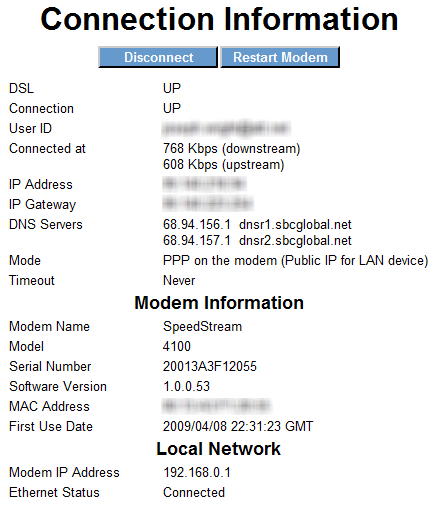
When looking at my DSL modem connection information it appears that i’m only connecting at 768Kbps despite paying for 6Mb service.

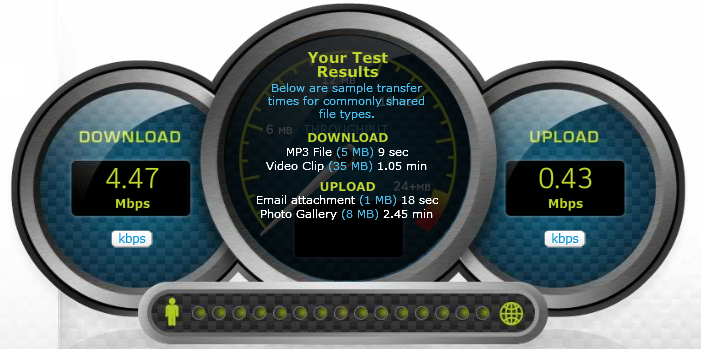
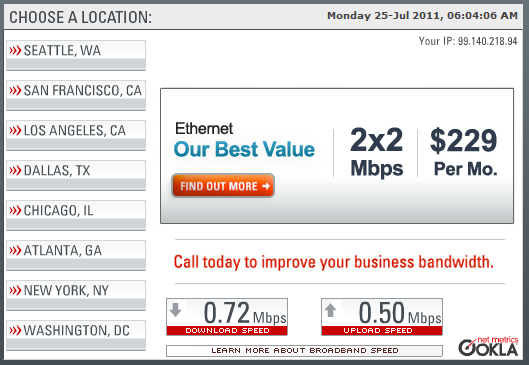
This is definitely a problem that AT&T needs to fix. I started looking for a support phone number on their website and ended up in some kind of connection troubleshooter. One step was to run a speedtest on the AT&T website (http://www.att.com/speedtest/). The results were astonishing. Even though my modem was only connected at 768Kbps, I was getting almost 5Mbps download speed.

A speakeasy speedtest returned the results that I was expecting.

Is AT&T trying to scam consumers by telling them that the internet speeds they’re receiving are actually much faster than they are?

Ubuntu 11.04 RVM Gem Problem

I recently encountered this issue when using Ubuntu 11.04 to set up a new Rails server with RVM, Passenger, Apache. The first indication of a problem is when you see this line at the end of the rvm install 1.9.2 output:

ruby-1.9.2-p180 - #importing default gemsets (/home/user/.rvm/gemsets/)
'gem' command not found, cannot select a gemset.
Install of ruby-1.9.2-p180 - #complete

This means it had issues compiling ruby, rubygems in particular. You will also notice this error when using the gem command to install any gems:

ERROR:  Loading command: install (LoadError)
no such file to load -- zlib
ERROR:  While executing gem ... (NameError)
uninitialized constant Gem::Commands::InstallCommand

To fix this you’ll have to install the zlib libraries with the command:

sudo apt-get install libghc6-zlib-dev

This won’t fix the problem immediately, you’ll have to rebuild ruby by using:

rvm install 1.9.2

Then you’ll be able to properly install any gems you require.

Disable Adobe Updater, Adobe Flash Updater and Java Auto Updater with Group Policy

Most applications keep their settings in the Windows registry which makes it easy to make changes with group policy across an entire organization. Here is where some common applications keep their update settings.

Adobe Acrobat 9: Registry

HKEY_LOCAL_MACHINE\SOFTWARE\Policies\Adobe\Adobe Acrobat\9.0\FeatureLockDown\bUpdater=0

Java Auto Update: Registry

HKEY_LOCAL_MACHINE\SOFTWARE\JavaSoft\Java Update\Policy\EnableJavaUpdate=0

Adobe Flash Player: Filesystem

You need to create a file called mms.cfg in the c:\Windows\System32\Macromed\Flash directory. The contents of this file should be one line:

AutoUpdateDisable=1

Making the registry changes is easy with group policy. The filesystem changes needs to be done manually or can be automated with a tool like robocopy. The best solution I found is to use the admin share of the C drive on each workstation to copy the file which would look like \\workstation-01\c$\Windows\System32\Macromed\Flash. Using a logon script to copy the file won’t work unless users are a local administrator since the logon scripts will run under their user privileges.

I used the default workstation policies on a Windows SBS 2008 server to apply the registry settings. In Group Policy Management expand Forest, Domains, domain name, MyBusiness, Computers, SBSComputers. Since all workstations are Windows 7 I edited the Windows SBS Client Policy.

Then expand Computer Configuration, Preferences, Windows Settings, Registry. I used the registry wizard to create the new entries. Simply make the two changes on a workstation and then you specify that workstation in the registry wizard and locate the changes you would like to replicate with group policy.

Office 2010 Activation Methods

One of the new features of Office 2010 for volume license customers is an overly complicated activation method. You now no longer have the ability to build an Office installer executable that includes the proper license key. Your two options for activation are:

  • KMS (Key Management Service)
  • MAK (Multiple Activation Key)

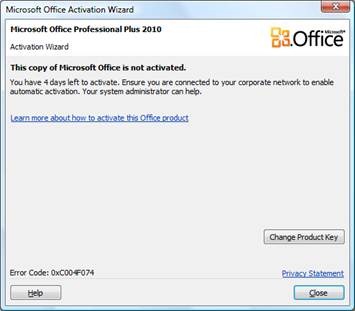
MAK will be the most familiar to most people. It is simply a license key that you can use to activate Office 2010 on an individual PC. The easiest way to activate an Office install is to wait for the activate nag window to pop-up, select the Change Product Key button, and enter the MAK. The KMS method requires installing KMS on a server on the Windows domain that can service the activation requests.

You’ll know you need to activate an Office 2010 volume license when you see a couple telltale signs:

The activation nag screen will pop-up when starting any office application.

The red bar across the top stating that activation has failed and you are now in limited mode will show up after activation has failed and the grace period has elapsed.

The Office 2010 about page can be seen by going to the File tab > Help.

If you have more than 5 PCs to activate, and you should for a volume license, the KMS activation method will be the easiest. First, install Key Management Service 1.1 for your 32 or 64bit system. You can download the appropriate version here:

After running the installer, there is also a windows update that needs to be run. Install the update and reboot if necessary. Then install the Microsoft Office 2010 KMS Host Licens Pack which can be found here:

The installer will ask for your KMS License Key for Office 2010 which you can get from your licensing portal. The Office 2010 installer your downloaded from the licensing portal will already contain your KMS client key which it uses when contacting the server.

Once all the KMS components are installed, you need at least 5 computers to contact the KMS server and join it’s KMS pool. Until the KMS pool consists of at least 5 computers, all activations will fail. You can check the status of the pool size by running the following command on the KMS Server:

C:\WINDOWS\system32>cscript slmgr.vbs /dli or

C:\WINDOWS\system32>cscript slmgr.vbs /dlv for more inforamation.

Then you’ll see a response like the following:

Name: Office(TM) 14, Beta1ProPlusKMSHost edition
Description: Office(TM) 14 KMS, VOLUME_KMS channel
Partial Product Key: TCDMC
License Status: Licensed
Key Management Service is enabled on this machine
Current count: 6
Listening on Port: 1688
DNS publishing enabled
KMS priority: Normal

The current count item is the one needs to show at least 5. In order to increase the count, you can open unactivated copies of Office 2010 on your computers that will then be added to the KMS pool. These computer need to be part of the windows domain in order for this to work since the KMS server is found through the local domain’s DNS.

You can also force Office 2010 to attempt an activation by issuing the following command on the client computers:

c:\Program Files\Microsoft Office\Office14\cscript ospp.vbs /act

A complete command line reference for ospp.vbs can be found here:

Asterisk AMI via HTTP Intro

The Asterisk Manager Interface can be accessed in two ways. The first is through TCP port 5038 using the AMI protocol and the second is through the HTTP protocol on port 8088. Both of these ports can be change in the manager.conf or http.conf config files.

Once Asterisk is configured properly for AMI access, you can issue standard AMI commands through a HTTP query string interface and have results returned as text, html, or xml.

To configure AMI over HTTP, the following line needs to be added or modified in the manager.conf file:

webenabled = yes

The following lines need to be added or modified in the http.conf file:

enabled = yes
bindaddr = 0.0.0.0 ;to allow connections from any IP address.
bindport = 8088
prefix = asterisk ;the virtual directory to be used for the interface, ie. http://asteriskserver:8088/asterisk/

Reload the config files with the reload command at the CLI and the webserver should be running. In asterisk 1.6 you can run the command http show status to see the status of the server. It will also show you the paths to use to return the desired results.

HTTP Server Status:
Prefix: /asterisk
Server Enabled and Bound to 0.0.0.0:8088
Enabled URI’s:
/asterisk/httpstatus => Asterisk HTTP General Status
/asterisk/phoneprov/… => Asterisk HTTP Phone Provisioning Tool
/asterisk/manager => HTML Manager Event Interface
/asterisk/rawman => Raw HTTP Manager Event Interface
/asterisk/static/… => Asterisk HTTP Static Delivery
/asterisk/mxml => XML Manager Event Interface

You can view the HTML interface to AMI at the following path http://asteriskserver:8088/asterisk/manager. Keep in mind that asteriskserver is the hostname or IP of your particular server. Each command issued should have an action argument. So, it would look like http://asteriskserver:8088/asterisk/manager?action=actionname. If the action has any arguments, pass them along with argumentname=argumentvalue.

For every method of issuing AMI commands, the authenticated session information is stored in a cookie in the browser or in whatever client you use to access AMI. The cookie is called mansession_id and, after login, should be passed back to the server for every subsequent command.

To login to the HTML interface, go to http://asteriskserver:8088/asterisk/manager?action=login&user=admin&secret=amp111 and make sure you are able to accept the mansession_id cookie.

The above login action uses the default manager username and password from a trixbox installation. In other asterisk installations, you can add or modify users in the manager.conf config file.

The complete list of AMI commands can be found here: http://www.voip-info.org/wiki/view/Asterisk+manager+API

Trixbox Asterisk Dynamic Agent Toggle

Using dynamic agents on any asterisk based system can be a struggle. First, the phone digit maps or dial plans have to allow the login/logout commands like queue*extension# for logging in and queue**extension# for logging out.

Also, asterisk allows you to log into a queue with any extension, including system extensions. We’ve seen people log into a queue with extension 2 which ends up causing calls into that queue to go into an infinite loop.

The following code was originally found here: http://fonality.com/trixbox/forums/trixbox-forums/open-discussion/howto-dynamic-agents-login-logout-auto-loggoff but since it seems like they’ve locked the thread i’ll post my changes here.

[custom-agent-inout]
exten => s,1,Wait(1)
exten => s,n,Set(CALLBACKNUM=${CALLERID(number)})
exten => s,n,AddQueueMember(queue1,Local/${CALLBACKNUM}@from-internal/n)
;If they’re already logged in, log off
exten => s,n,GotoIf($[“${AQMSTATUS}” = “MEMBERALREADY”]?a2)
exten => s,n,Playback(non-crisis-login)
exten => s,n,UserEvent(Agentlogin,Agent: ${CALLBACKNUM})
exten => s,n,Hangup()
exten => s,n(a2),RemoveQueueMember(queue1,Local/${CALLBACKNUM}@from-internal/n)
exten => s,n,UserEvent(Agentlogoff,Agent: ${CALLBACKNUM})
exten => s,n,Playback(non-crisis-logoff)
exten => s,n,Hangup()

The only thing we’ve changed was AddQueueMember(${ARG1}) to AddQueueMember(queue1,Local/${CALLBACKNUM}@from-internal/n).

This caused the correct trixbox interface to be added to the queue. Just passing the extension number to AddQueueMember caused the extension to ring but would not follow any of the queue rules such as skip busy agents.

We’ve also expanded on this to log agents into multiple queues at the same time. This was necessary since for some calls, we’ll allow the caller to wait in a queue for a little bit, then direct them to an IVR for the chance to leave a message, then back into a second queue with music to hold for an agent.

[custom-agent-inout-multiple]
exten => s,1,Wait(1)
exten => s,n,Set(CALLBACKNUM=${CALLERID(number)})
exten => s,n,AddQueueMember(queue1,Local/${CALLBACKNUM}@from-internal/n)
;If they’re already logged in, log off
exten => s,n,GotoIf($[“${AQMSTATUS}” = “MEMBERALREADY”]?a2)
exten => s,n,AddQueueMember(queue2,Local/${CALLBACKNUM}@from-internal/n)
exten => s,n,Playback(crisis-login)
exten => s,n,UserEvent(Agentlogin,Agent: ${CALLBACKNUM})
exten => s,n,Hangup()
exten => s,n(a2),RemoveQueueMember(queue1,Local/${CALLBACKNUM}@from-internal/n)
exten => s,n,RemoveQueueMember(queue2,Local/${CALLBACKNUM}@from-internal/n)
exten => s,n,UserEvent(Agentlogoff,Agent: ${CALLBACKNUM})
exten => s,n,Playback(crisis-logoff)
exten => s,n,Hangup()

Cracking windows passwords with ophcrack and rainbow tables

Our company specializes in both system administration and also computer forensics. One skill that I find useful in both areas is the ability to reverse passwords residing in a windows domain.

As you may know, NT passwords are created using a one way hash algorithm, which means, they can not be decrypted to obtain the plaintext password. But, what if you had a listing of the hashes of every password? Then you would just be able to compare the hashes until you found one that matched, right?

Well, this is certainly possible. To crack windows XP and server 2003 passwords that are less that 14 characters and contain letters, numbers and symbols, you’ll need about 7.5GB of “rainbow tables.” These tables are the listings of plaintext passwords and their corresponding hash. The entire process will require a few tools:

  • pwdump or the newer fgdump: This will export the password files from a local computer or a windows domain to a .pwdump file.
  • Ophcrack: This is a utility that is used to compare the .pwdump file to the rainbow tables.
  • Rainbow Tables: these were explained earlier. They can be purchased or you can download a utility to create them yourself.

Once you have all the tools, the process is pretty simple. The recovery rate is pretty high for Windows XP and Server 2003. Password hashes have change for Vista, Windows 7 and Server 2003 so you’ll need a different set of rainbow tables that can be acquired similarly to the XP tables.