Category Archives: System Administration

Upgrading OpenVPN VMWare Virtual Appliance

Upgrading is relatively easy because the OpenVPN Access Server is just a Debian package that runs on Ubuntu 14. Before upgrading OpenVPN it is a good idea to update the Ubuntu 14 server itself. You can use the standard:

apt-get update
apt-get upgrade

Next, find the latest Ubuntu package from this page: https://openvpn.net/index.php/access-server/download-openvpn-as-sw/113.html?osfamily=Ubuntu. Copy the link for the Ubuntu 14 64-bit package. The current download for the 2.0.24 version is http://swupdate.openvpn.org/as/openvpn-as-2.0.24-Ubuntu14.amd_64.deb.

SSH into the appliance and run:

wget http://swupdate.openvpn.org/as/openvpn-as-2.0.24-Ubuntu14.amd_64.deb
dpkg -i openvpn-as-2.0.24-Ubuntu14.amd_64.deb

This will upgrade the VMWare ESXi OpenVPN Virtual Appliance to the latest version.

Installing Dell OpenManage Server Administrator on VMWare ESXi 5.5

Installing Dell OMSA on a ESXi server allows you to see more detailed information regarding the Dell hardware. It also allows you to perform operations such as specifying hot spares and rebuilding RAID arrays. After you install OMSA on the ESXi server you can install the OMSA web-based GUI on another Windows PC or Server in order to access OMSA.

The steps below will get OMSA up and running on VMWare ESXi 5.5. Be sure to download the version of the OMSA Offline Installation Bundle that corresponds to your version of ESXi.

Continue reading

Microsoft Remote Desktop for Mac

Microsoft_Remote_DesktopMicrosoft released their new remote desktop client for mac on October 17th, 2013. This comes after HLW Software Development (developer of iTap RDP for iOS, Mac and Android) announced they were discontinuing their products on October 8th.

This had us worried since we have multiple customers that use iTap on their Mac and iOS devices and we always have more customers that need to be set up. Since the iTap products were the only RDP apps for Mac and iOS that could work with a Terminal Server Gateway it didn’t us any other options. Luckily, Microsoft announced their new RDP clients, based on the iTap codebase, only 9 days after discontinuing the iTap products.

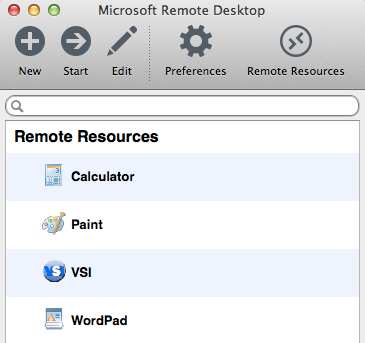
MSRDP-RemoteAppsThe new apps are not only a rebranding of the existing software, they contain a few enhancements. The greatest enhancement, for us and our clients anyway, is RemoteApp integration. That allows single apps to be run from a RDP session similar to what Parallels Coherence and VMWare Fusion Unity does for local VMs.

By clicking on Remote Resources you can enter the address of your RDWeb URL, your username and password and be presented with a list of published RemoteApps. This gets us one step closer to being able to recommend Apple devices to our clients without worrying about computability with Microsoft systems.

The Mac version can be found on the Mac App Store.

Reclaiming space from WSUS

If you’re not using WSUS then there are several things you can do to remove those gigabytes of updates that have accumulated. The best method of doing this is to disable WSUS instead of trying to uninstall it which may be a problem on SBS 2003 or SBS 2008. Here is how you do it:

  • Open Windows Server Update Services in Administrative Tools
  • Expand the server and click on Options
  • Open Synchroniztion Schedule and change it to Manual
  • Open Automatic Approvals and delete the automatic approval rule
  • Expand Updates > All Updates. Select all updates, right click and select Decline
  • Click on Options and Server Cleanup Wizard and run the wizard

Disable Adobe Updater, Adobe Flash Updater and Java Auto Updater with Group Policy

Most applications keep their settings in the Windows registry which makes it easy to make changes with group policy across an entire organization. Here is where some common applications keep their update settings.

Adobe Acrobat 9: Registry

HKEY_LOCAL_MACHINE\SOFTWARE\Policies\Adobe\Adobe Acrobat\9.0\FeatureLockDown\bUpdater=0

Java Auto Update: Registry

HKEY_LOCAL_MACHINE\SOFTWARE\JavaSoft\Java Update\Policy\EnableJavaUpdate=0

Adobe Flash Player: Filesystem

You need to create a file called mms.cfg in the c:\Windows\System32\Macromed\Flash directory. The contents of this file should be one line:

AutoUpdateDisable=1

Making the registry changes is easy with group policy. The filesystem changes needs to be done manually or can be automated with a tool like robocopy. The best solution I found is to use the admin share of the C drive on each workstation to copy the file which would look like \\workstation-01\c$\Windows\System32\Macromed\Flash. Using a logon script to copy the file won’t work unless users are a local administrator since the logon scripts will run under their user privileges.

I used the default workstation policies on a Windows SBS 2008 server to apply the registry settings. In Group Policy Management expand Forest, Domains, domain name, MyBusiness, Computers, SBSComputers. Since all workstations are Windows 7 I edited the Windows SBS Client Policy.

Then expand Computer Configuration, Preferences, Windows Settings, Registry. I used the registry wizard to create the new entries. Simply make the two changes on a workstation and then you specify that workstation in the registry wizard and locate the changes you would like to replicate with group policy.

Office 2010 Activation Methods

One of the new features of Office 2010 for volume license customers is an overly complicated activation method. You now no longer have the ability to build an Office installer executable that includes the proper license key. Your two options for activation are:

  • KMS (Key Management Service)
  • MAK (Multiple Activation Key)

MAK will be the most familiar to most people. It is simply a license key that you can use to activate Office 2010 on an individual PC. The easiest way to activate an Office install is to wait for the activate nag window to pop-up, select the Change Product Key button, and enter the MAK. The KMS method requires installing KMS on a server on the Windows domain that can service the activation requests.

You’ll know you need to activate an Office 2010 volume license when you see a couple telltale signs:
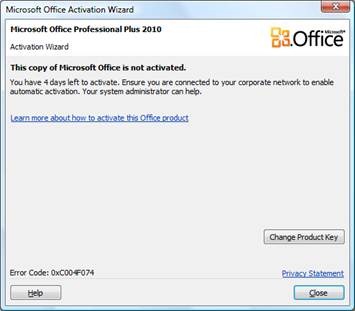
The activation nag screen will pop-up when starting any office application.

The red bar across the top stating that activation has failed and you are now in limited mode will show up after activation has failed and the grace period has elapsed.

The Office 2010 about page can be seen by going to the File tab > Help.

If you have more than 5 PCs to activate, and you should for a volume license, the KMS activation method will be the easiest. First, install Key Management Service 1.1 for your 32 or 64bit system. You can download the appropriate version here:

After running the installer, there is also a windows update that needs to be run. Install the update and reboot if necessary. Then install the Microsoft Office 2010 KMS Host Licens Pack which can be found here:

The installer will ask for your KMS License Key for Office 2010 which you can get from your licensing portal. The Office 2010 installer your downloaded from the licensing portal will already contain your KMS client key which it uses when contacting the server.

Once all the KMS components are installed, you need at least 5 computers to contact the KMS server and join it’s KMS pool. Until the KMS pool consists of at least 5 computers, all activations will fail. You can check the status of the pool size by running the following command on the KMS Server:

C:\WINDOWS\system32>cscript slmgr.vbs /dli or

C:\WINDOWS\system32>cscript slmgr.vbs /dlv for more inforamation.

Then you’ll see a response like the following:

Name: Office(TM) 14, Beta1ProPlusKMSHost edition
Description: Office(TM) 14 KMS, VOLUME_KMS channel
Partial Product Key: TCDMC
License Status: Licensed
Key Management Service is enabled on this machine
Current count: 6
Listening on Port: 1688
DNS publishing enabled
KMS priority: Normal

The current count item is the one needs to show at least 5. In order to increase the count, you can open unactivated copies of Office 2010 on your computers that will then be added to the KMS pool. These computer need to be part of the windows domain in order for this to work since the KMS server is found through the local domain’s DNS.

You can also force Office 2010 to attempt an activation by issuing the following command on the client computers:

c:\Program Files\Microsoft Office\Office14\cscript ospp.vbs /act

A complete command line reference for ospp.vbs can be found here:

Cracking windows passwords with ophcrack and rainbow tables

Our company specializes in both system administration and also computer forensics. One skill that I find useful in both areas is the ability to reverse passwords residing in a windows domain.

As you may know, NT passwords are created using a one way hash algorithm, which means, they can not be decrypted to obtain the plaintext password. But, what if you had a listing of the hashes of every password? Then you would just be able to compare the hashes until you found one that matched, right?

Well, this is certainly possible. To crack windows XP and server 2003 passwords that are less that 14 characters and contain letters, numbers and symbols, you’ll need about 7.5GB of “rainbow tables.” These tables are the listings of plaintext passwords and their corresponding hash. The entire process will require a few tools:

  • pwdump or the newer fgdump: This will export the password files from a local computer or a windows domain to a .pwdump file.
  • Ophcrack: This is a utility that is used to compare the .pwdump file to the rainbow tables.
  • Rainbow Tables: these were explained earlier. They can be purchased or you can download a utility to create them yourself.

Once you have all the tools, the process is pretty simple. The recovery rate is pretty high for Windows XP and Server 2003. Password hashes have change for Vista, Windows 7 and Server 2003 so you’ll need a different set of rainbow tables that can be acquired similarly to the XP tables.

Sophos Automated Software Rollout

I recently had to install the Sophos Anti-Virus suite at a client office and had issues with a few PCs during the automated rollout of the software. The problem seemed to be that the server with Sophos Control Center was not able to remotely administer several client PCs. The way I was able to test this out was by using Computer Manager to test connecting to each one of the PCs I was having problems installing the software on.

On each PC experiencing the issue, I was not able to remotely connect with Computer Manger. Once I was able to connect with Computer Manager, the Sophos software installed successfully.

There were two reasons this was failing in our environment consisting of Windows XP and Windows 7 workstations.

The problem with Windows XP was that the XP firewall as blocking remote administration. I solved this problem by setting the firewall to allow remote administration through group policy. To do this:

  1. From the server desktop, click Start, click Run, type mmc, and then click OK.
  2. On the File menu, click Add/Remove Snap-in.
  3. On the Standalone tab, click Add.
  4. In the Available Standalone Snap-ins list, click Group Policy Object Editor, and then click Add.
  5. In the Select Group Policy Object dialog box, click Browse.
  6. In the Browse for a Group Policy Object, click the Group Policy object that you want to update with the new Windows Firewall settings. I decided to choose Default Domain Policy since then it would apply to all PCs in the domain.
  7. Click OK.
  8. Click Finish to complete the Group Policy Wizard.
  9. In the Add Standalone Snap-in dialog box, click Close.
  10. In the Add/Remove Snap-in dialog box, click OK.
  11. In the console tree, open Computer ConfigurationAdministrative TemplatesNetworkNetwork Connections, Windows Firewall, and then Domain Profile.
  12. Edit the properties for Windows Firewall: Allow Remote Administration Exception.
  13. Select enable and enter the IP of your server so that you don’t open up remote administration to everyone.

After a restart of the PC, you should be able to deploy Sophos or any other remotely installed software.

For Windows 7 PCs, the problem was that remote administration and installation of software requires the remote registry service to be running. It is set to Automatic startup on Windows XP but set to Manual startup on Windows 7. After changing the startup type to Automatic and starting the service I was able to easily deploy Sophos.